Accessing the Outcome Form
After conducting a checkride, you need to record the outcome on the platform. You can access the outcome form in two ways:
- From the calendar — Click on the checkride block on your calendar to open the detail view, then select the option to record an outcome.
- From the Checkrides list — Navigate to Checkrides in the sidebar, find the checkride, and open its detail view.
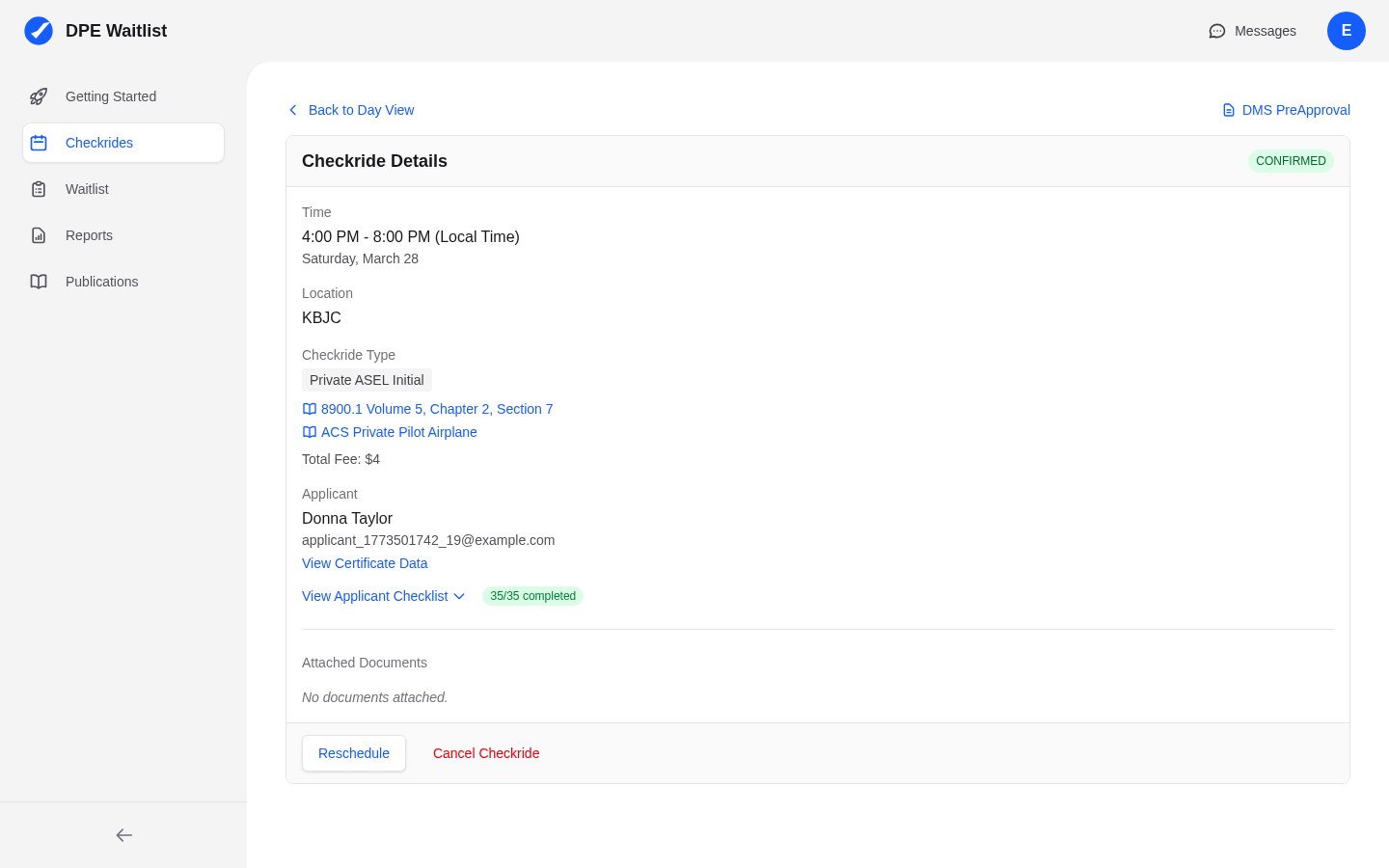
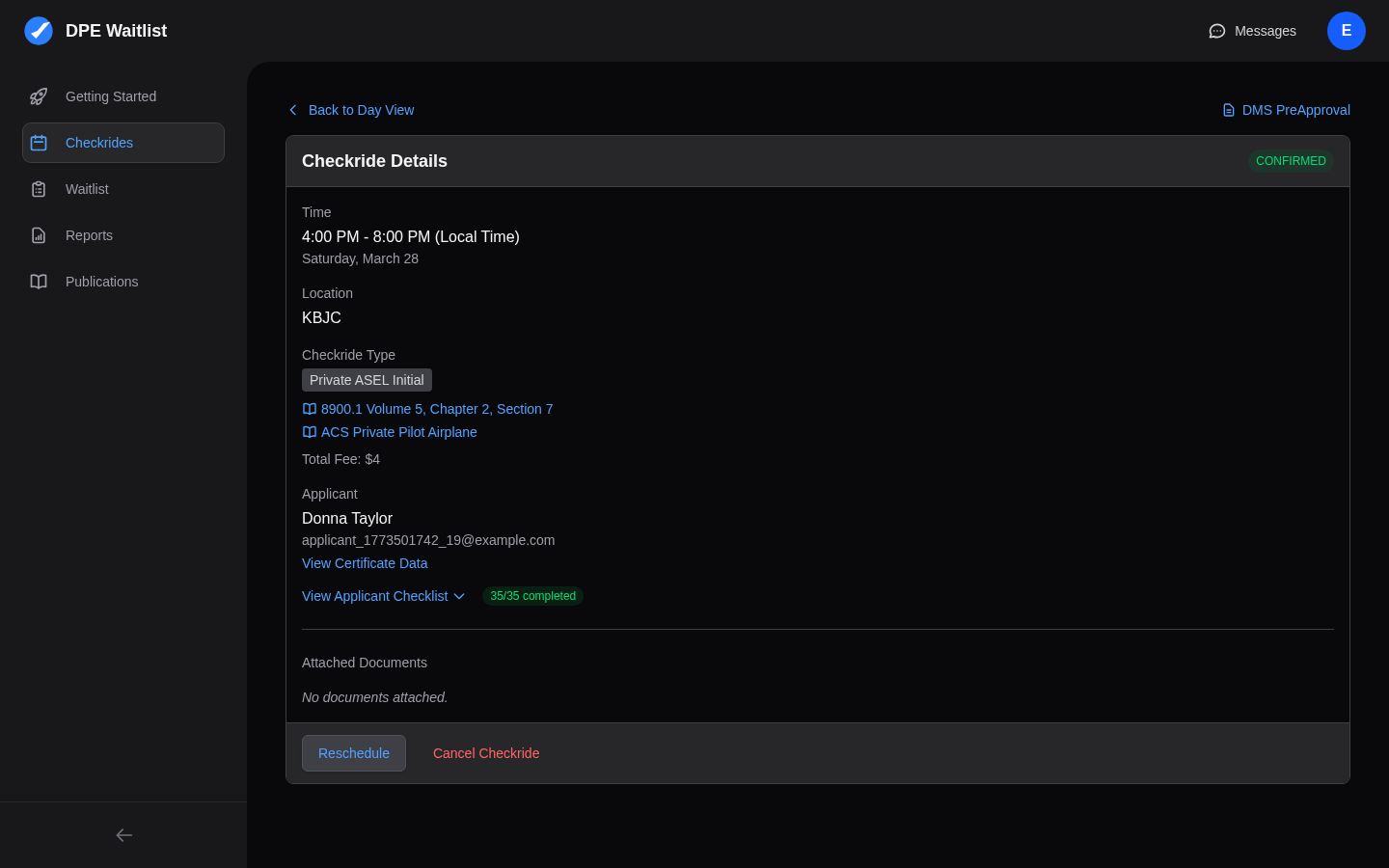
Recording an outcome changes the checkride status from CONFIRMED to COMPLETE.
The Three Outcomes
Approval
Select Approval when the applicant has successfully completed the practical test. On the platform, an approval marks the applicant's checkride as complete for this checkride type. They are removed from your waitlist for this type (though they may remain on your waitlist for other types if applicable).
Disapproval
Select Disapproval when the applicant did not pass. A disapproval can trigger automatic rescheduling if you have enabled this feature in your scheduler settings. When auto-rescheduling is active, the applicant is automatically returned to your waitlist with a disapproval flag, allowing the scheduler to offer them a new checkride date once they are ready to retest.
Discontinuance
Select Discontinuance when the checkride was started but could not be completed. Like disapprovals, discontinuances can trigger automatic rescheduling if enabled. The applicant is returned to your waitlist with a discontinuance flag, and the scheduler treats them as a priority for rescheduling since they only need to complete the unfinished portions of the test.
Adding Notes
When creating or offering a checkride, you have the option to add notes. These notes are stored with the checkride record and are only visible to you — they are not shown to the applicant.
Automatic Rescheduling
If your scheduler configuration has the automatic rescheduling option enabled, the platform will handle the logistics of getting the applicant back on your schedule after a disapproval or discontinuance. The applicant is returned to your waitlist with the appropriate flag, and the scheduler will include them in its next optimization run. You can always override the scheduler's decisions by manually creating or adjusting checkrides.
Impact on Reports
All recorded outcomes feed into your reports and statistics. You can view approval rates, disapproval counts, and discontinuance trends in the Reports section. These metrics help you track your activity and identify patterns over time.