How to Cancel a Checkride
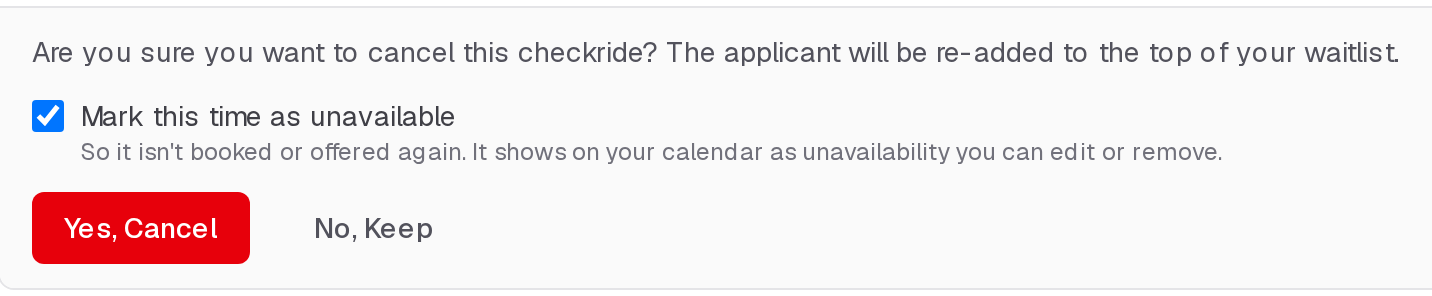
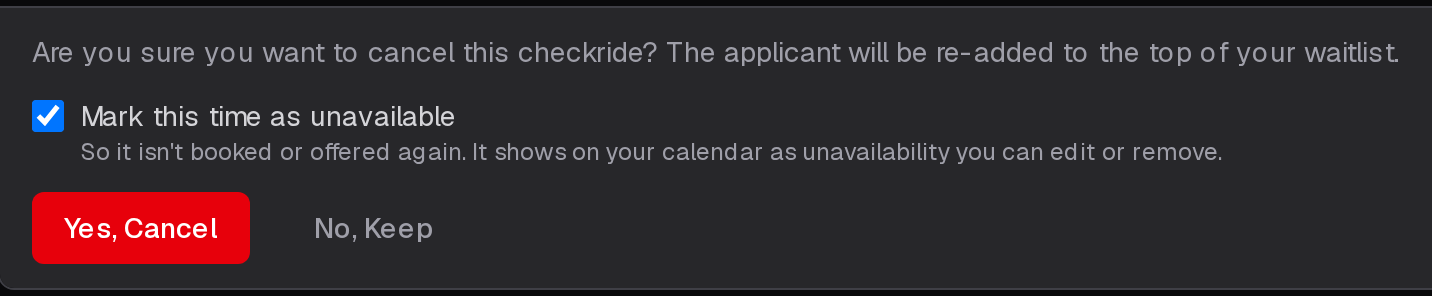
To cancel a checkride, open the checkride detail view by clicking the checkride block on your calendar or finding it in the Checkrides list. In the detail view, click Cancel Checkride. You will be shown a confirmation prompt before the cancellation is finalized to prevent accidental cancellations.
What Happens When You Cancel
When you confirm the cancellation, several things happen:
- Status change — The checkride status is set to CANCELLED. The checkride remains in your history for recordkeeping but is removed from your active schedule.
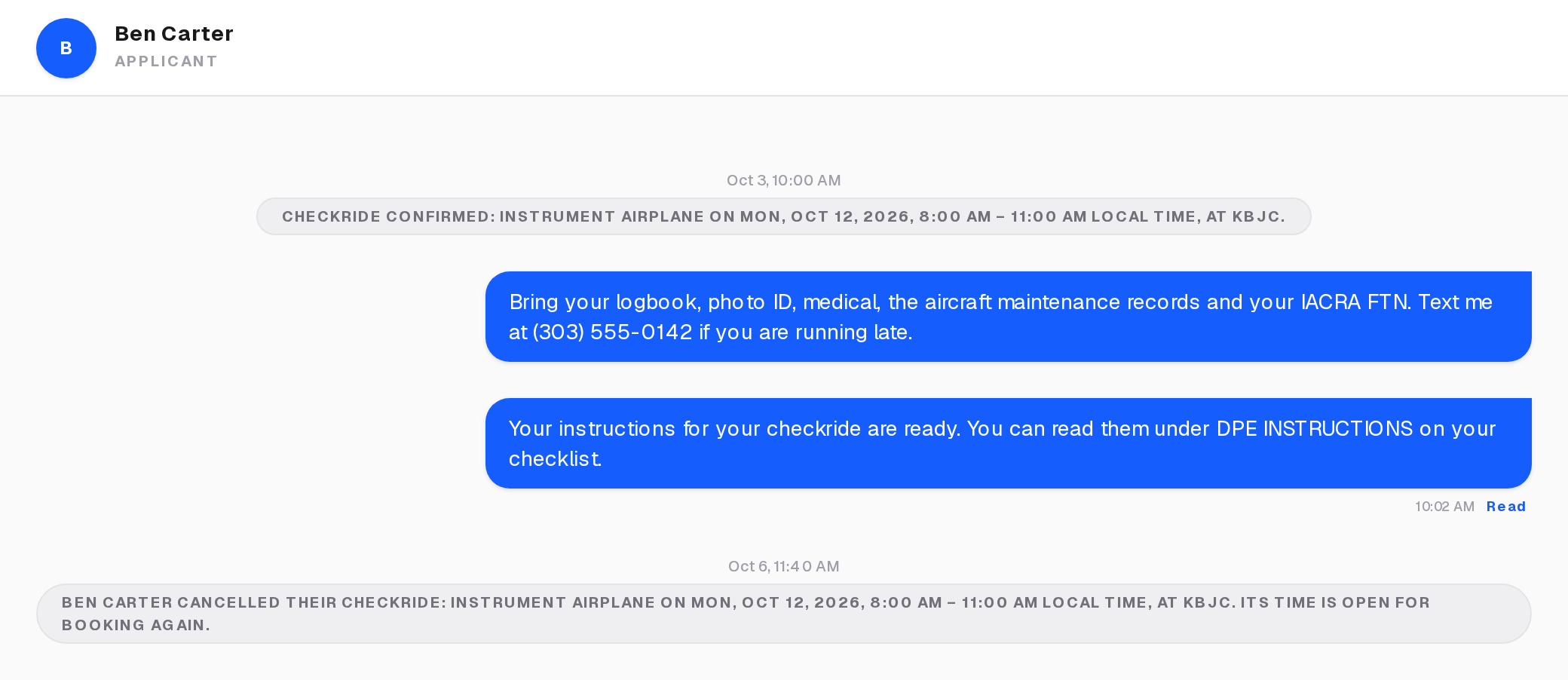
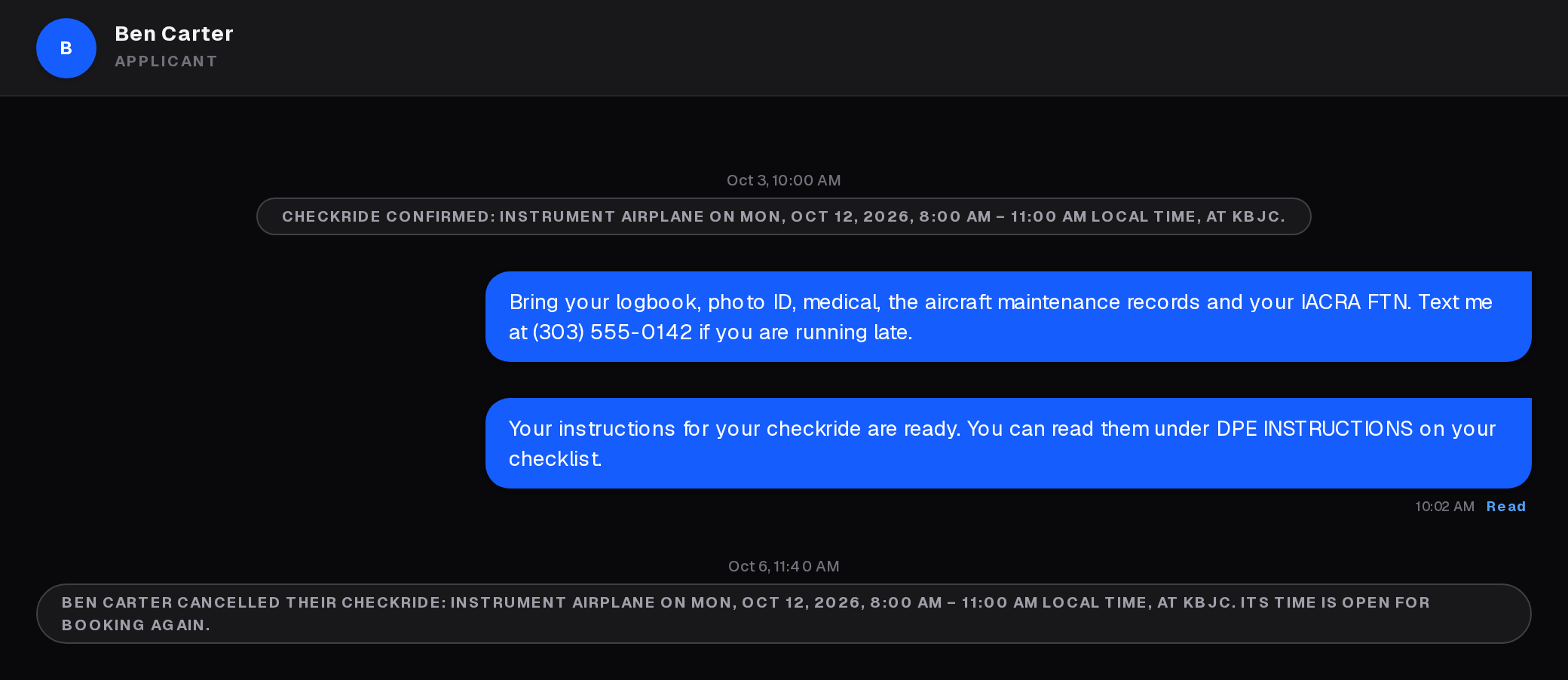
- Applicant notification — The applicant gets a message about the cancellation in your conversation, and a text if they have turned texts on.
- Back on your waitlist — If the checkride was confirmed, the applicant goes back on your waitlist for it, at the top, so they are first in line for your next offers.
- The time is free again — In Automatic the scheduler can offer it on its next run; in Self-Serve applicants can book it straight away.
Taking the Time Back
If you are cancelling because you can't make it yourself, leave Mark this time as unavailable checked in the confirmation (it is checked by default for a checkride still ahead). The checkride's time is then marked unavailable, so it is neither booked nor offered again. It shows on your calendar as ordinary unavailability, noted with why, which you can edit or delete like any other.
When an Applicant Cancels
When an applicant cancels a confirmed checkride, you get a message in your conversation with them, naming the checkride. In Self-Serve mode it also says when the time is open for booking again, so you can take it back first if you want to. It lights the unread dot on Messages in the top bar, and if you have text messages turned on, you get a text.