The Weekly Calendar Layout
The calendar view is your primary tool for visualizing your checkride schedule. It uses a weekly layout where each day of the week appears as a column and time slots run as rows from top to bottom. This gives you an at-a-glance view of your entire week, making it easy to see when you are busy, when you are available, and where gaps exist.
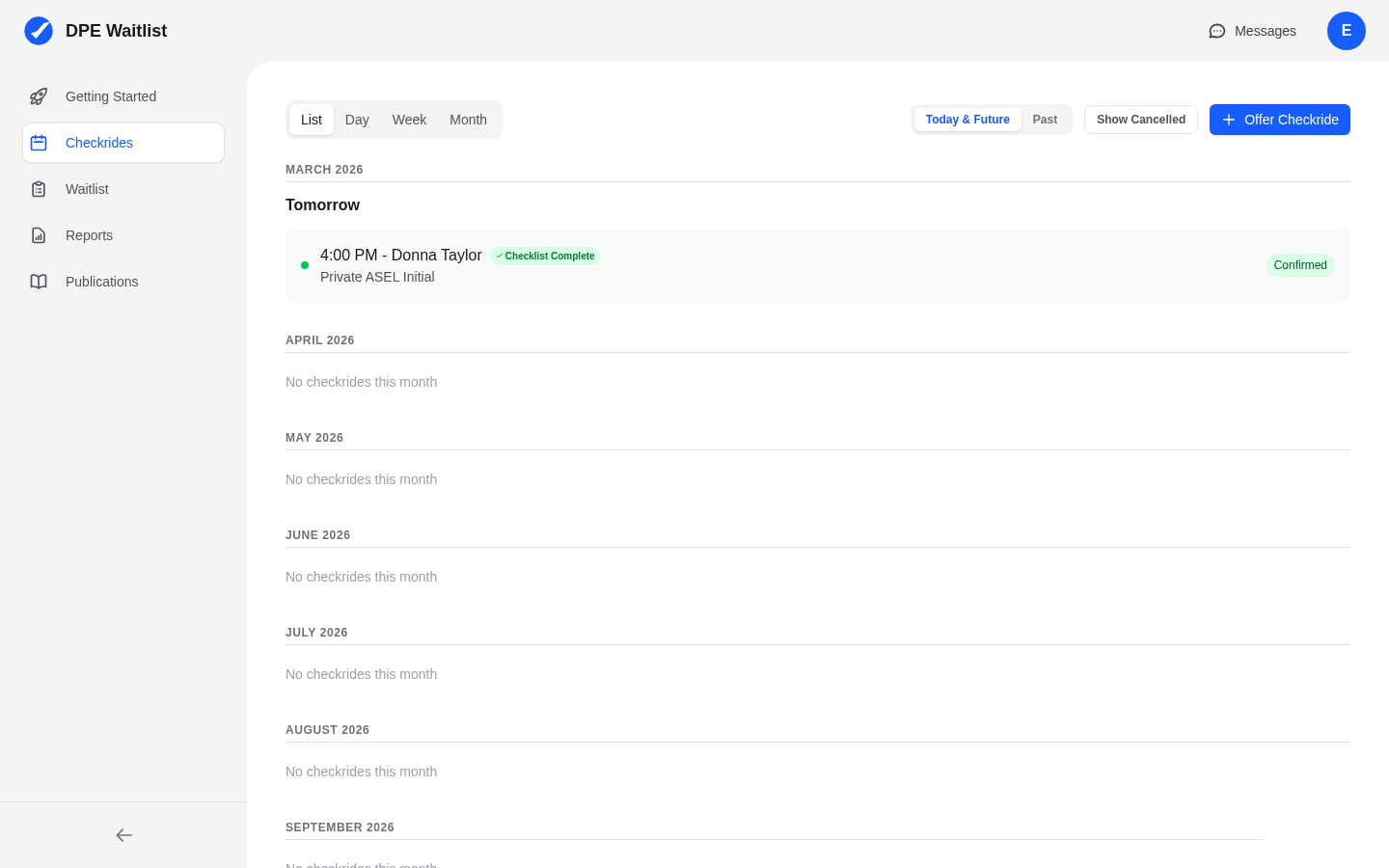
How Checkrides Appear
Each scheduled checkride appears as a block on the calendar. The block spans the time allocated for that checkride based on the configured duration for its type. Inside each block, you will see:
- Checkride type abbreviation — A short code for the checkride type (e.g., PPL for Private Pilot, IR for Instrument Rating).
- Applicant name — The name of the applicant scheduled for the checkride.
- Location — The testing location where the checkride will take place.
Color Coding by Status
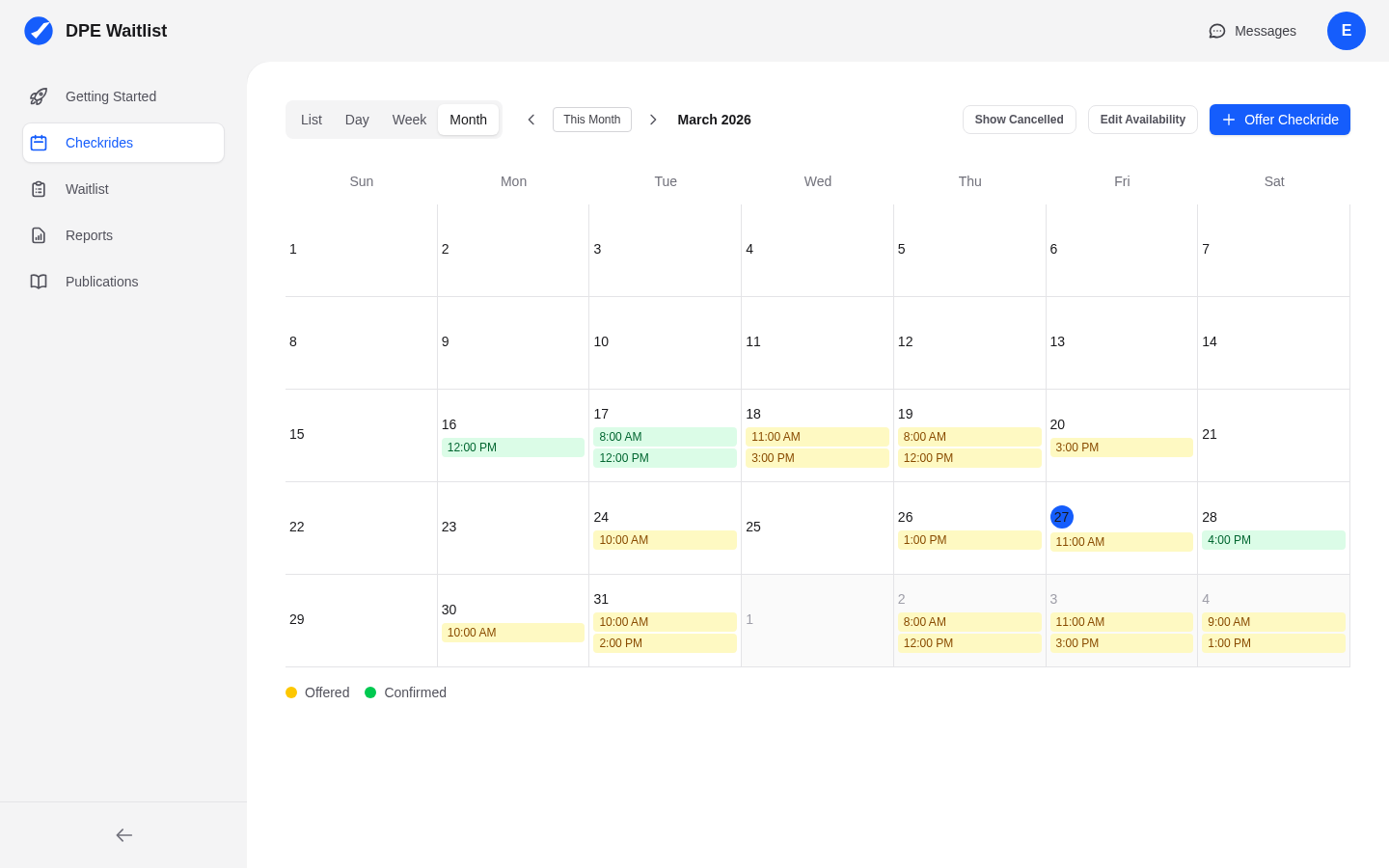
Checkride blocks are color-coded based on their current status, so you can quickly distinguish between different states:
- Offered — Checkrides that have been proposed to an applicant but not yet accepted.
- Confirmed — Checkrides the applicant has accepted and are locked in on your schedule.
- Complete — Checkrides that have been conducted and have a recorded outcome.
- Cancelled — Checkrides that were canceled before taking place.
This color coding helps you quickly scan your week and understand your schedule status without clicking into individual checkrides.
Availability Blocks
Your configured availability is displayed as background shading on the calendar. Time slots where you are available for checkrides appear with a distinct background color, while unavailable times have no shading. This makes it easy to see at a glance when the scheduler can place checkrides and where you have open capacity.
The calendar also offers Day, Week, and Month views. Switch between them using the tabs at the top. The Month view provides a birds-eye view of your entire month with color-coded checkride entries.
Navigating Between Weeks
Use the navigation controls at the top of the calendar to move between periods:
- Previous / Next buttons — Move backward or forward one period at a time.
- Today button — Jump directly back to the current period, useful when you have navigated far from the present.
Interacting with the Calendar
The calendar is interactive. You can:
- Click on a checkride block to open the checkride detail view, where you can see full information, reschedule, cancel, or record an outcome.
- Click on an empty time slot within an availability block to start creating a new checkride manually. This opens the checkride creation form pre-filled with the date and time you clicked.