What This Is For
Your FAA Form 8710-1 (Airman Certificate and/or Rating Application) is generated in IACRA. The platform lets you upload a PDF copy alongside your other checkride documents so the parties involved — you, your instructor, and your DPE — can review and digitally sign a single shared copy in one place. This does not replace IACRA; you still submit and sign the original 8710 in IACRA. The copy on DPE Waitlist helps automatically fill some checklist items and acts as a backup in case IACRA is down on the day of your checkride.
Uploading Your 8710-1
Open the relevant checkride or Checkride Prep from your Checkrides page and use the upload control in the documents section. Choose FAA Form 8710-1 as the document type and select the PDF you downloaded from IACRA. Only one 8710-1 can be attached per checkride or prep — if you need to replace it, delete the existing one first.
Automatic Processing
After upload, the platform reads the form and shows a Processing 8710... spinner. When processing finishes (usually within a minute), a results panel appears below the document. It typically shows:
- Applicant information — your name, date of birth, certificate/rating applied for, aircraft, application ID, and FTN.
- Flight hours — total time, dual, solo, cross-country, night, instrument, and similar values pulled from the aeronautical experience table.
- Instructor signature details — your CFI's name, certificate number, signature date, and expiration, if a CFI E-SIGN line is present.
- Actions taken — a green list of what the platform did automatically: IACRA checklist items checked off, your SSN and your instructor's wet signature redacted from the stored copy, and so on.
- Warnings — amber callouts for issues such as a name mismatch between the 8710 and your account, or an SSN that was found and redacted.
Signing as the Applicant
Once the 8710 has been processed, a Sign 8710 as Applicant button appears on the document. Clicking it opens a review-and-sign modal that:
- Renders the actual page of the PDF where your signature will go, with the signature cell highlighted and auto-scrolled into view.
- Shows the form's verbatim certification text so you can read what you are attesting to.
- Offers a Click to Sign affordance over the highlighted cell. You either reuse your saved signature, edit it, or draw a new one on the signature pad.
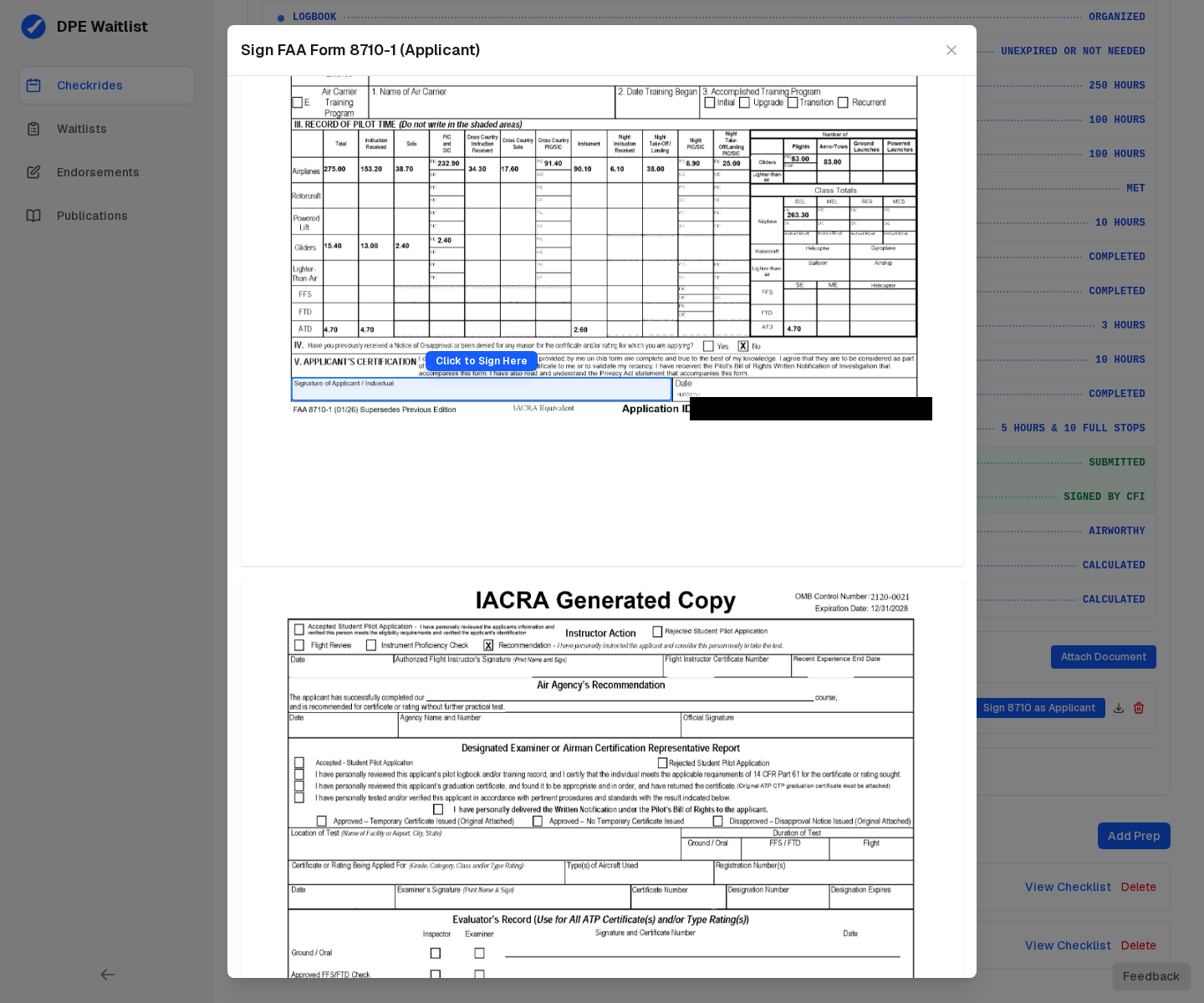
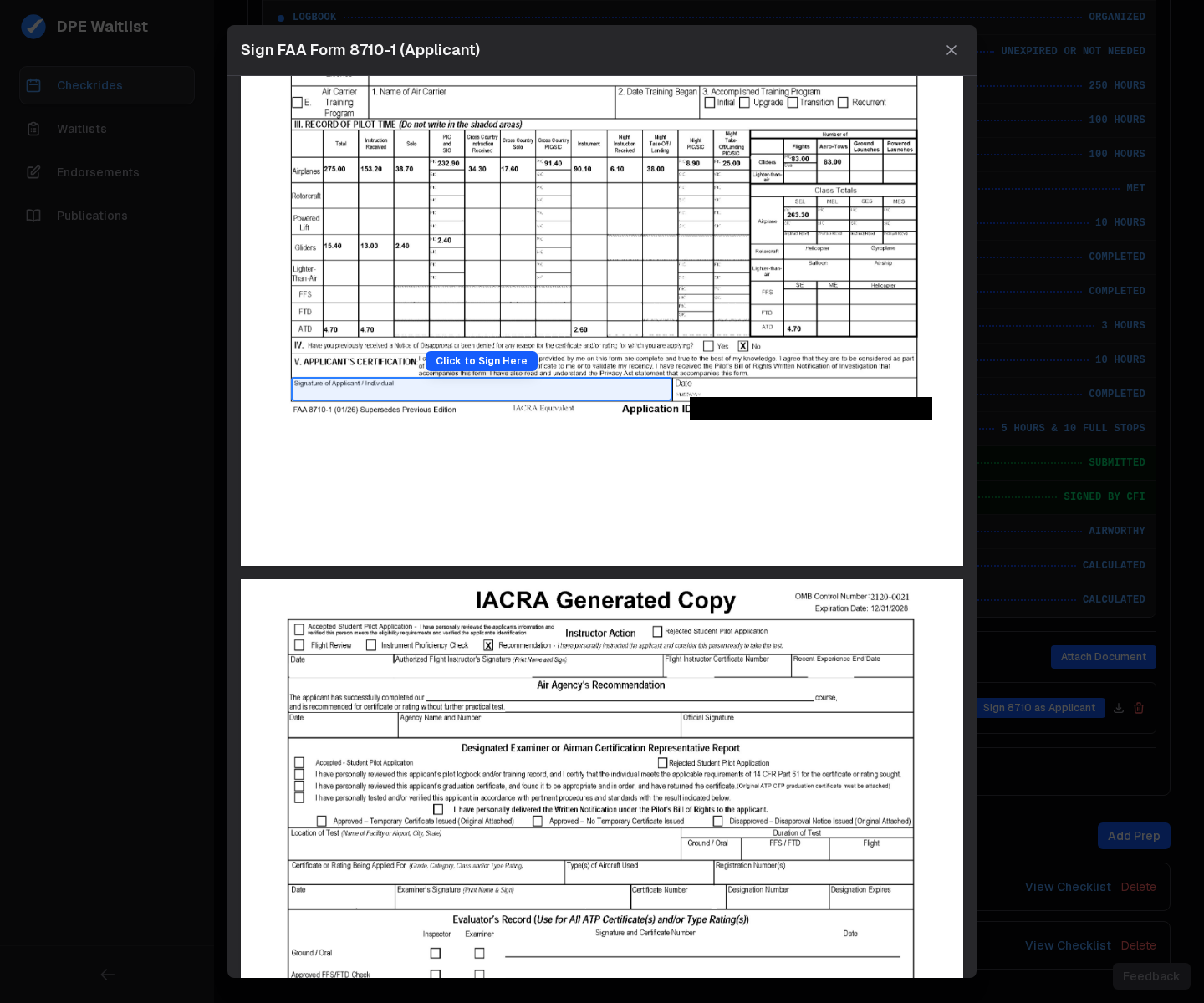
After you sign, the document row updates to show Signed by Applicant. You can remove your signature later if you need to (for example, if the form needs to be regenerated). Each signature is stamped permanently onto the PDF — neither you nor the platform changes the underlying form image.
The Three-Party Signing Chain
The 8710 is signed in order: applicant → instructor → DPE. Each role uses the same review-and-sign modal styled with their own pill button (Sign 8710 as Applicant, Sign 8710 as Instructor, Sign 8710 as DPE). The status line above the document is a single summary of the chain, e.g. Signed by Applicant, then Signed by Applicant and Instructor, and finally Signed by Applicant, Instructor, and DPE.
Privacy and Redaction
If your 8710 contains an SSN, the platform automatically blanks it out on the stored copy before anyone else can see the document. The same applies to any wet signature your instructor added before you uploaded — a clean digital signature replaces it when the instructor signs through the platform.