Your FAA Form 8710-1 lives in IACRA. Uploading a PDF of it to your checkride checks off the IACRA items on your pre-checkride checklist, gives you, your instructor, and your DPE one copy to review and sign, and is a backup in case IACRA is down on the day of your checkride. Here is how to get the PDF out of IACRA and upload it.
1. Sign In to IACRA
Go to iacra.faa.gov, enter your IACRA username and password, and click Login.

2. Accept the Terms of Service as an Applicant
IACRA shows its Terms of Service and asks which role you are signing in as. Click the Accept TOS as button next to APPLICANT.

3. Find Your Application
The Applicant Console opens. Under Your Existing Applications, find the application for this checkride. The Certificate Type column tells them apart, for example ATP > Standard > CFR 61 > Original. If you have more applications than fit, the older ones are on the pages numbered below the table.
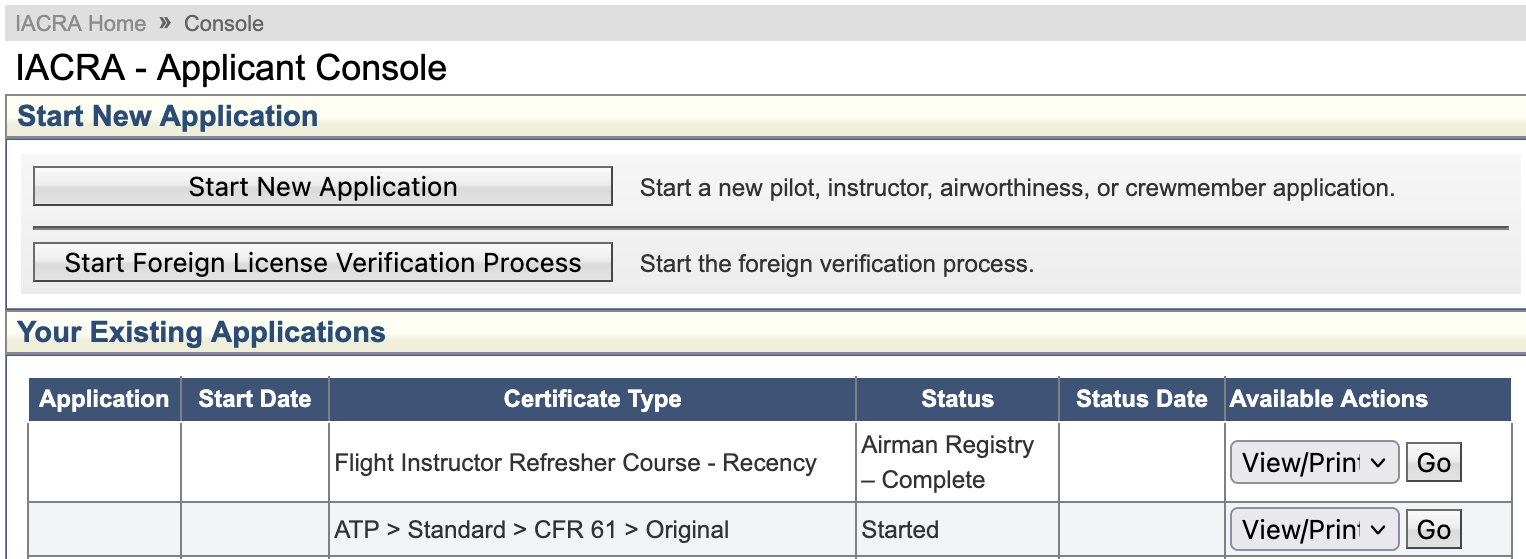
4. Choose View/Print, Then Go
In that application's Available Actions menu, choose View/Print, then click Go next to it.
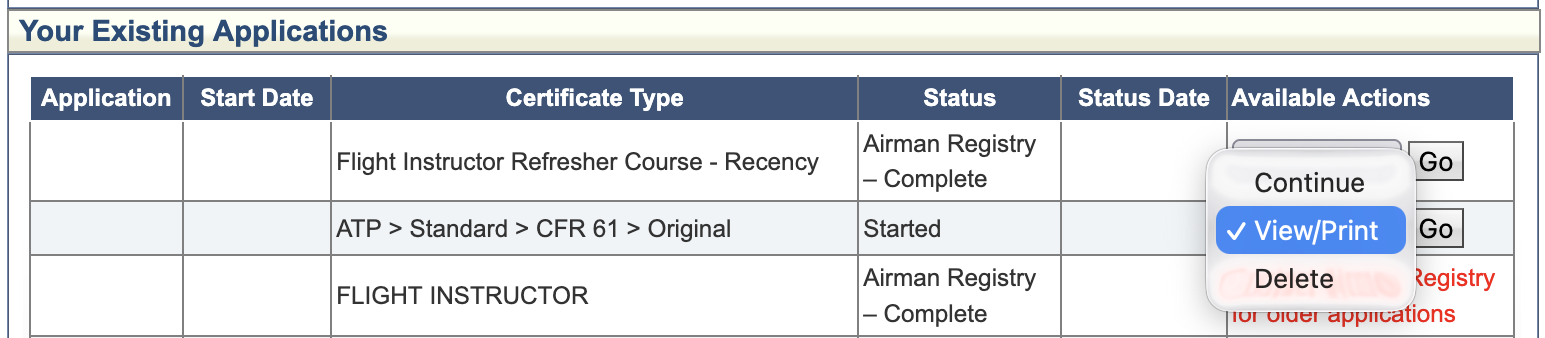

5. Open the PDF
IACRA opens its copy of your FAA Form 8710-1 in a new window. Click View/Print PDF at the top.
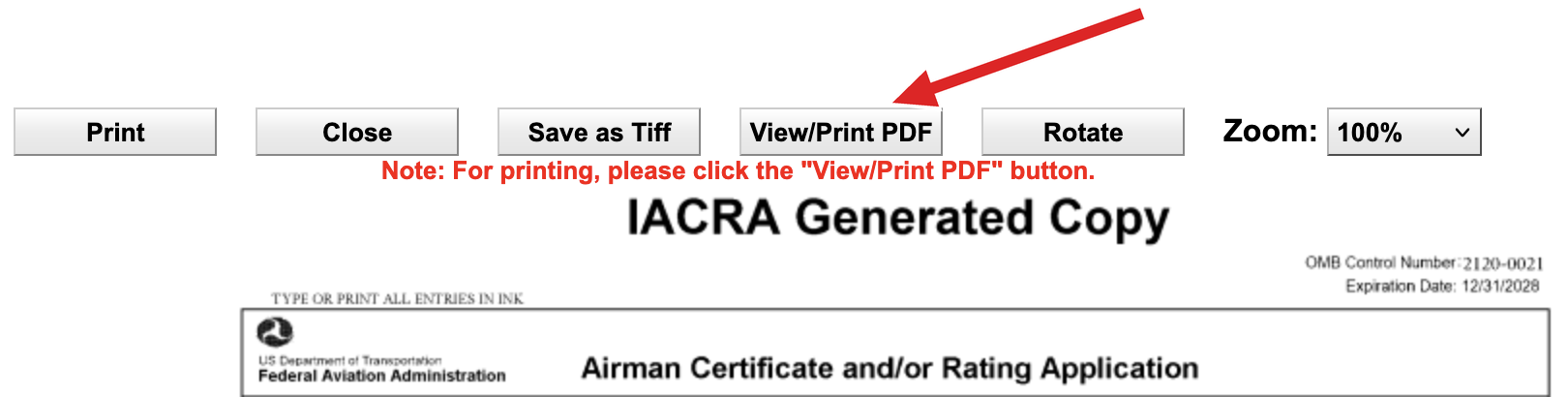
If no window opens, your browser has blocked it. Allow pop-ups for iacra.faa.gov and click Go again.
6. Save the PDF
The PDF opens in your browser. Save it to your computer or phone with the PDF viewer's download button: in Firefox and Chrome, it's the arrow at the top right.

7. Upload It to Your Checkride
In DPE Waitlist, open the checkride (or Checkride Prep) from your Checkrides page. Under Attached Documents, click Attach Document and choose the PDF you saved. Then choose 8710-1 as the Document Type and click Upload. Only one 8710-1 can be attached to a checkride or prep, so if you change your application in IACRA afterwards, delete the old copy and upload the new one.


The platform reads the form, usually within a minute. It checks off the IACRA items on your checklist and fills in what it can from the form, such as the aircraft type and your flight hours. Then you, your instructor, and your DPE sign it: see Signing Your FAA Form 8710-1.