Your Airman Knowledge Test Report is on PSI's FAA testing site. Uploading it to your checkride fills in your score and exam date on the knowledge test item of your pre-checkride checklist, and lists the code for every area you missed with what it covers, for you, your instructor, and your DPE. Here is how to save the report from PSI and upload it.
You'll need your PSI username and password, and the authenticator app you set up for PSI's multi-factor sign-in.
1. Go to PSI's FAA Testing Site
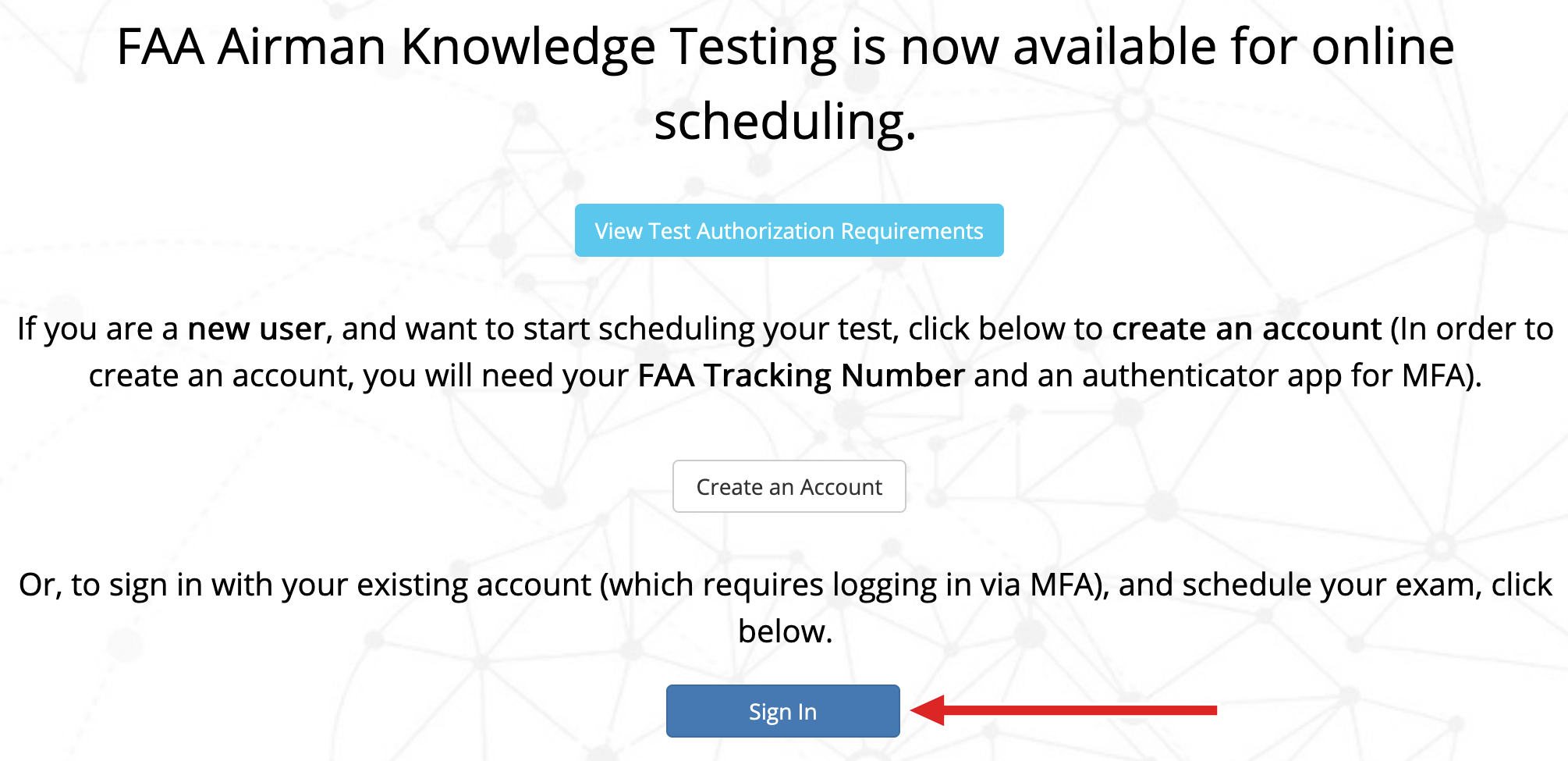
Go to faa.psiexams.com and click Sign In.
2. Agree to the Usage Acknowledgement
PSI shows a usage acknowledgement and the FAA's Paperwork Reduction Act and Privacy Act statements. Click I Agree at the bottom.

3. Sign In
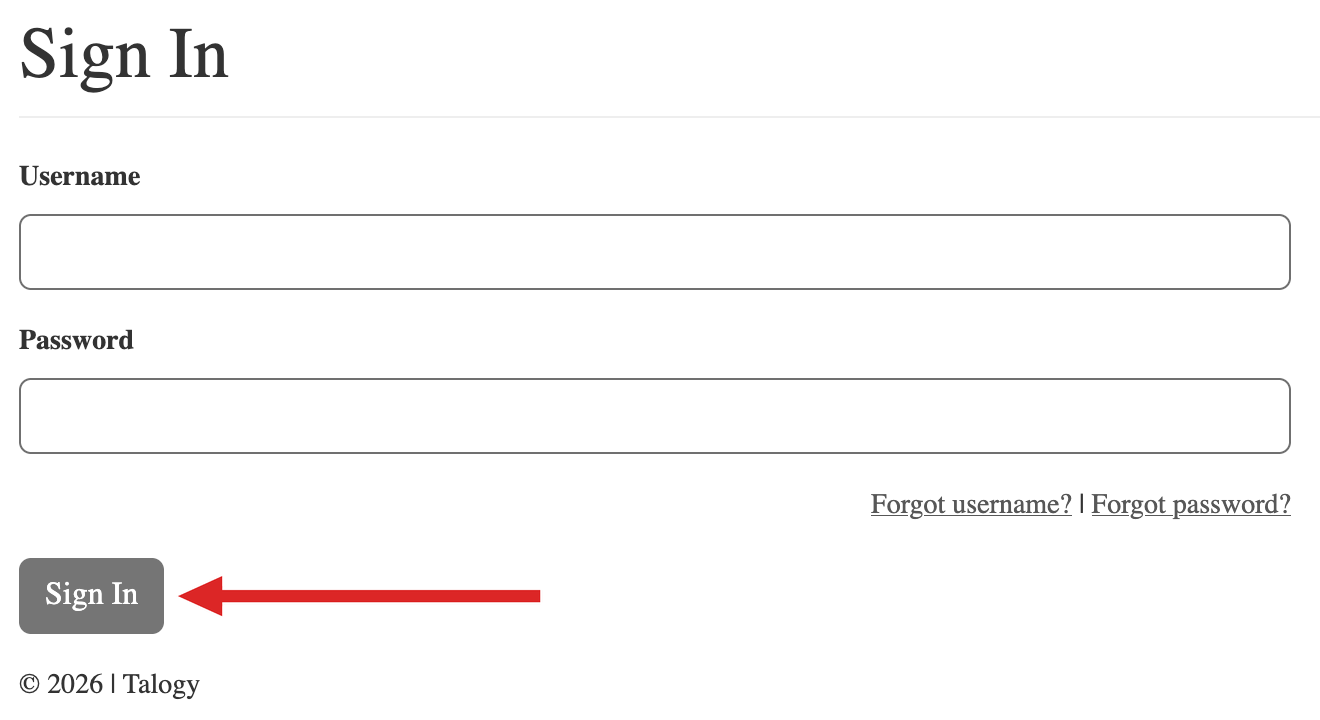
Enter your PSI username and password and click Sign In, then enter the code from your authenticator app when PSI asks for it.
4. Open Your Results
Click RESULTS in the menu bar at the top of the page.

5. Find Your Report and Download It
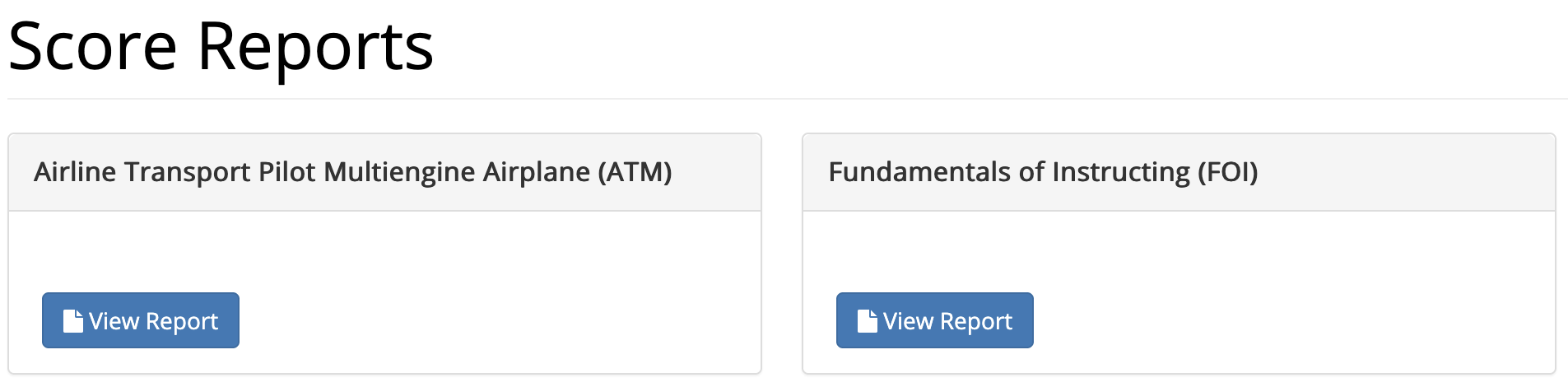
Score Reports has a card for each knowledge test you have taken, the most recent first. Find the one your checkride needs: the code in parentheses, such as (ATM), is the code your checklist's knowledge test item shows, as in ATM KNOWLEDGE TEST.
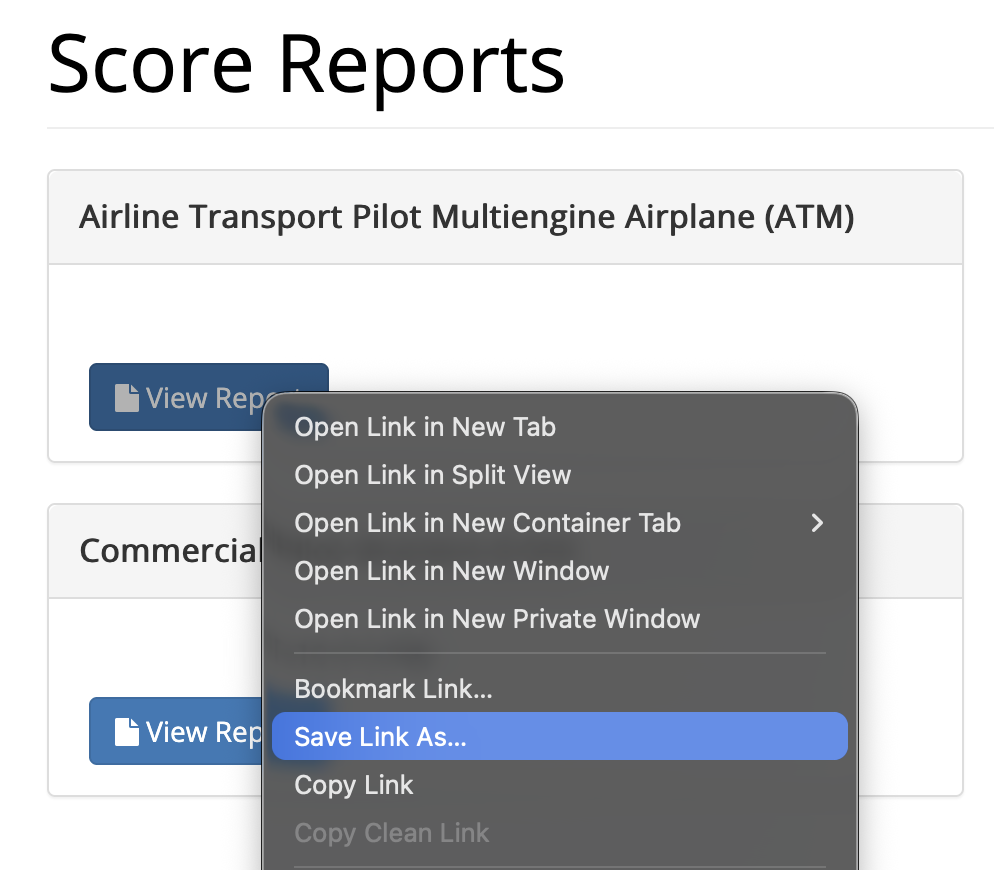
Right-click that test's View Report button and choose Save Link As… to save the report as a PDF. In Chrome the choice is Save link as…, and in Safari Download Linked File.
6. Upload It to Your Checkride
In DPE Waitlist, open the checkride (or Checkride Prep) from your Checkrides page. Under Attached Documents, click Attach Document and choose the report you saved. Then choose Knowledge Test Report as the Document Type and click Upload.
The platform reads the report and fills your score and exam date into the matching knowledge test item, which is checked if you passed and the result will still be valid on your checkride date. If you didn't pass, or the result will have expired, the item is filled in but left unchecked, and opening it shows why. A report for a test your checklist doesn't call for fills nothing in and is flagged under the document instead. Under the document, it lists the code for each area you missed with what that code covers in the ACS (or, for a test still built on a PTS, its learning statement).