Why Locations Matter
Many DPEs conduct checkrides at multiple airports or facilities. DPE Waitlist supports multi-location configurations, allowing you to manage different testing locations with their own travel fees and instructions. Applicants can specify preferred locations when joining your waitlist, and the scheduler uses this information when generating offers.
Adding a New Location
Navigate to Settings in the sidebar and select the Locations tab. Click the button to add a new location and fill in the details:
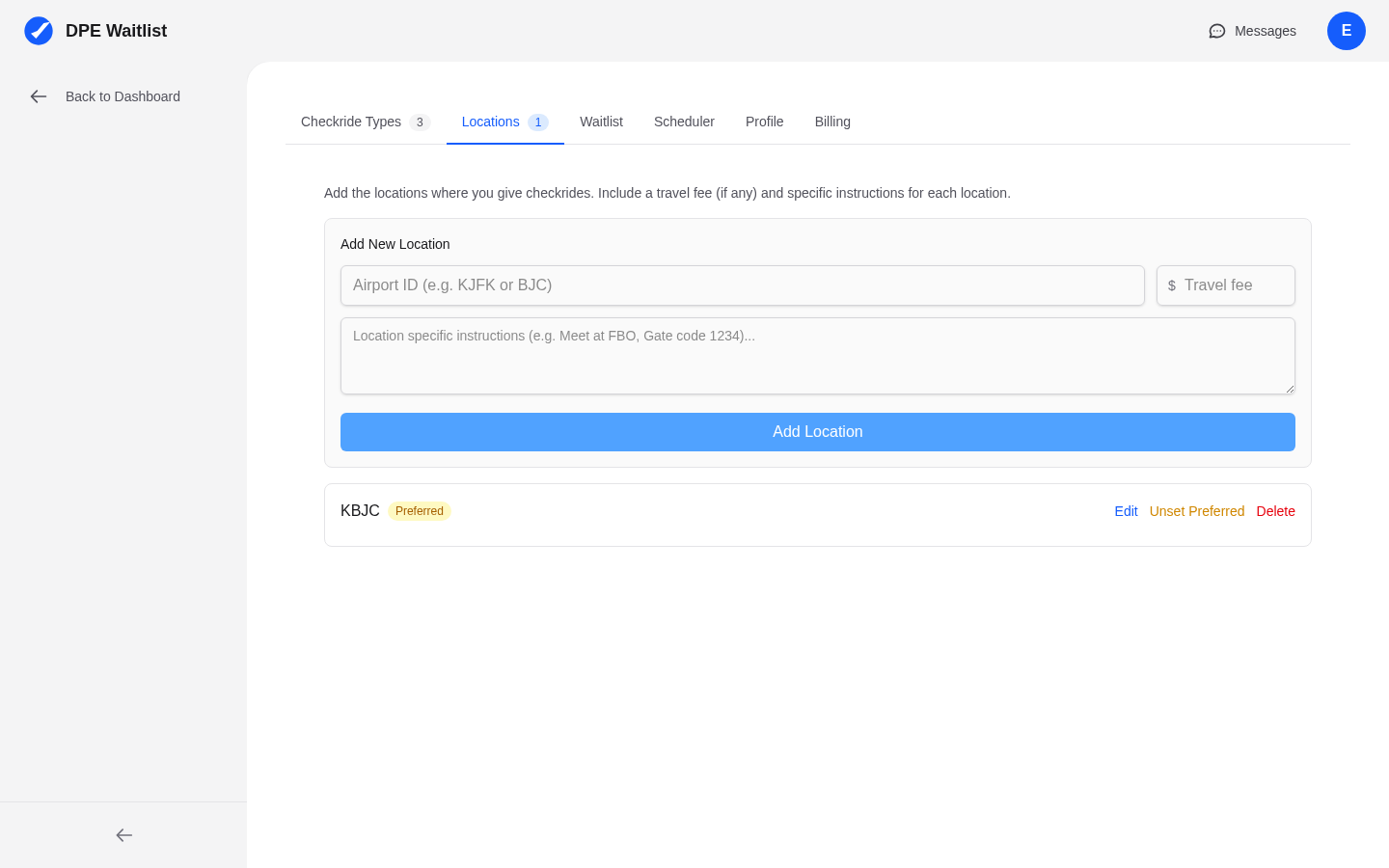
- Name — A descriptive name, typically the airport identifier and name (e.g., "KPAO - Palo Alto Airport").
- Preferred flag — Mark a location as preferred if it is your primary testing site. This helps applicants understand which locations you favor.
Setting Travel Fees
Each location has an associated travel fee. Set this to zero for your home base where no additional travel cost applies. For locations that require you to commute, set a fee that covers your travel time and expenses. The total fee an applicant sees is the base checkride fee plus the travel fee for the confirmed location.
Writing Location Instructions
You can add specific instructions for each location that are shown to applicants after they have a confirmed checkride there. Good instructions should cover:
- Meeting point — Exactly where to meet (e.g., "Meet at the ABC Flying Club lobby on the west side of the terminal building").
- Parking — Where to park, whether there is a fee, and any access codes or procedures.
- FBO details — If you meet at a Fixed Base Operator, include the FBO name and any check-in procedures.
- What to bring — Any location-specific items beyond the standard checklist (e.g., ramp access badge, airport ID requirements).
- Arrival time — Whether you expect the applicant to arrive early and by how much.
How Locations Appear to Applicants
When applicants view your profile on the DPE map or join your waitlist, they see your available testing locations along with any associated travel fees. They can indicate which locations they prefer. The scheduler uses this information to match applicants to slots at locations that work for both of you. Location instructions are only shown after a checkride is confirmed — they are not publicly visible on your profile.
Editing and Removing Locations
You can edit a location's details at any time by clicking on it in the locations list. If you no longer test at a particular location, you can remove it. Before removing a location, review whether any active checkrides or availability blocks are tied to it.