Starting DPE Registration
To create your DPE account, visit dpewaitlist.com and click the Get Started button on the homepage. This opens the DPE registration flow.
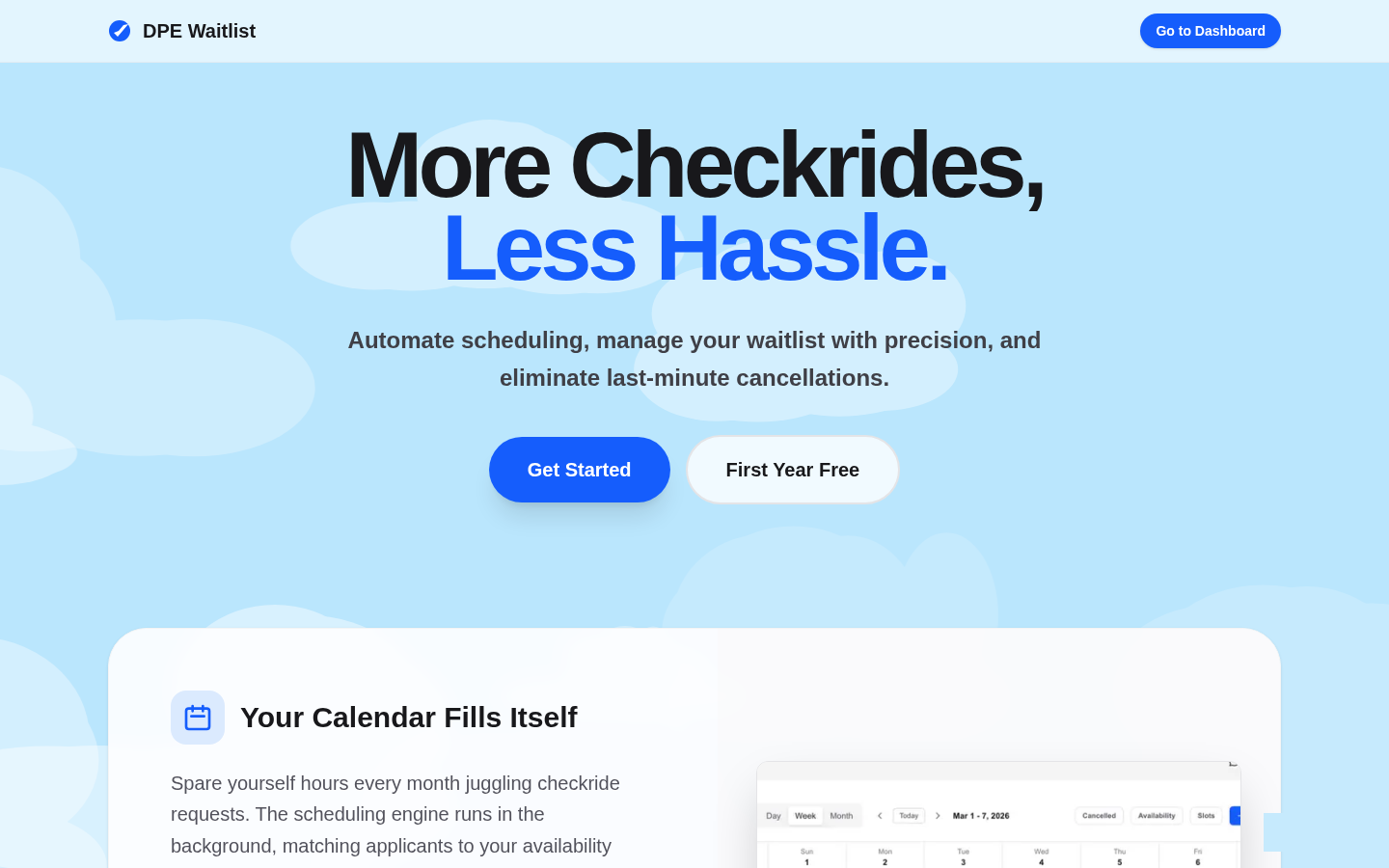
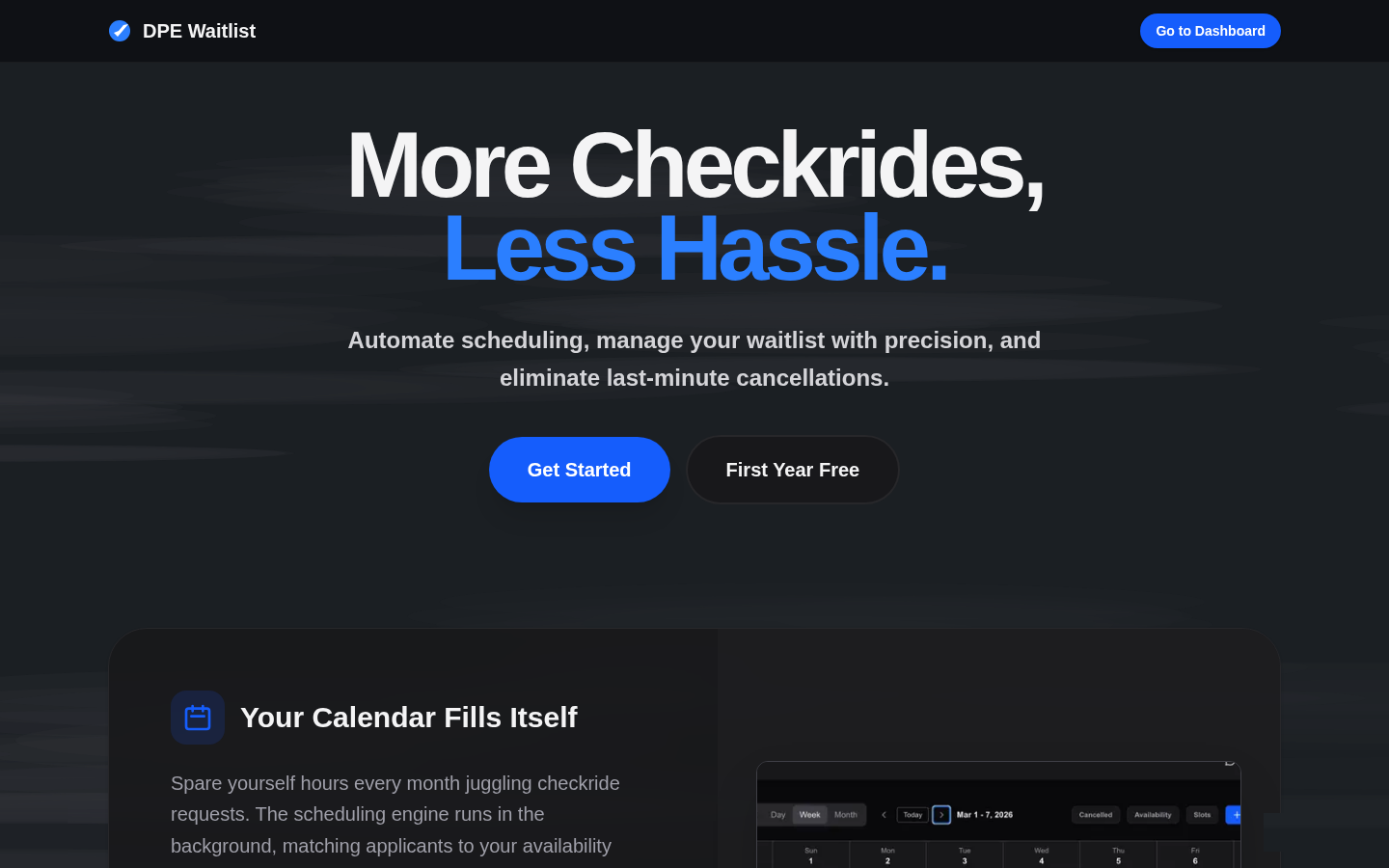
/register, that is the applicant sign-up page. Make sure you are using the Get Started button on the homepage.Email Lookup and Profile Import
The registration form asks for your email address — use the email that is on file with the FAA Designee Management System (DMS). The system uses this email to look up your DMS record and automatically imports your profile information:
- Name — Pulled directly from your DMS record.
- Designee number — Identified from the DMS lookup.
- Designation details — Your designation type, district, and other DMS metadata.
- Checkride types — Automatically populated from your Certificate of Designation (CLOA). You do not need to manually configure which checkride types you offer — the platform reads them from your CLOA.
Setting Your Password and Verifying Your Email
After the system locates your DMS record, you set a password for your account. Choose a strong password with at least 8 characters — we recommend a mix of uppercase and lowercase letters, numbers, and symbols.
You will then receive a verification email at the address you provided. Click the verification link to activate your account. If you do not see the email within a few minutes, check your spam or junk folder. You can request a new verification email from the login page.
Your First Login
Once your email is verified, log in with your email and password. You will be taken directly to your DPE dashboard, where you will see the Getting Started checklist. This checklist walks you through the remaining setup steps — completing your profile, adding testing locations, and setting your availability. Since your checkride types are already imported from your CLOA, you can skip that step.