Finding a DPE and Clicking "Join Waitlist"
Navigate to Find DPE in the sidebar and locate a DPE on the map. Click their marker to open their profile card, then click the Join Waitlist button. This button is only available for registered DPEs who have their waitlist open for self-serve signup.
Selecting Your Checkride Type
After clicking Join Waitlist, you will be asked to select the type of checkride you need from the DPE's offered types. Choose the certificate and aircraft category/class combination that matches your training — for example, "Private Pilot — ASEL" for a Private Pilot checkride in a single-engine land airplane.
Selecting Testing Locations
If the DPE has multiple testing locations, you will be asked to indicate which locations you prefer and which you would accept. Selecting more locations gives the scheduler more flexibility and may result in getting a checkride sooner. At minimum, select at least one location you are willing to travel to.
What Happens After You Join
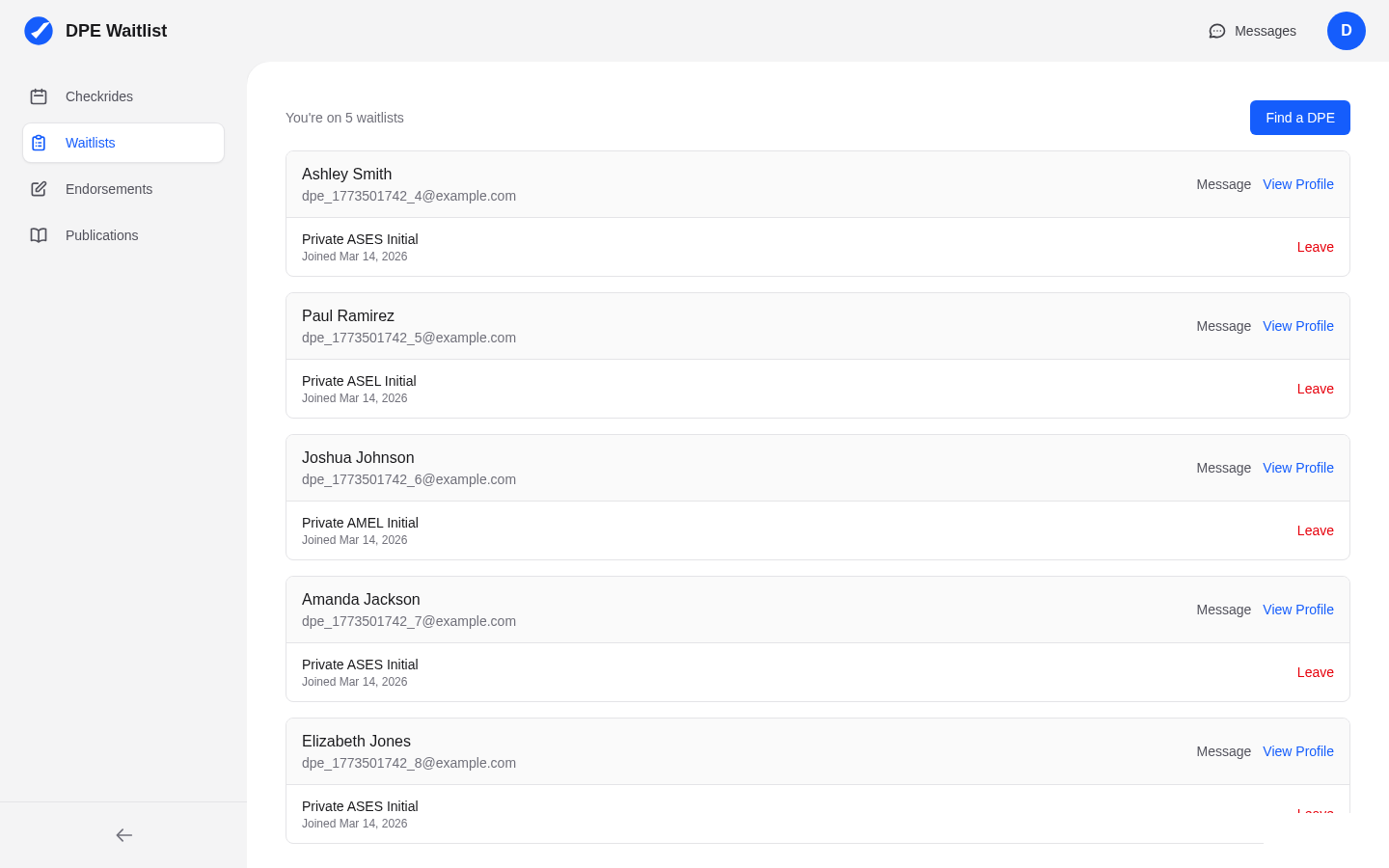
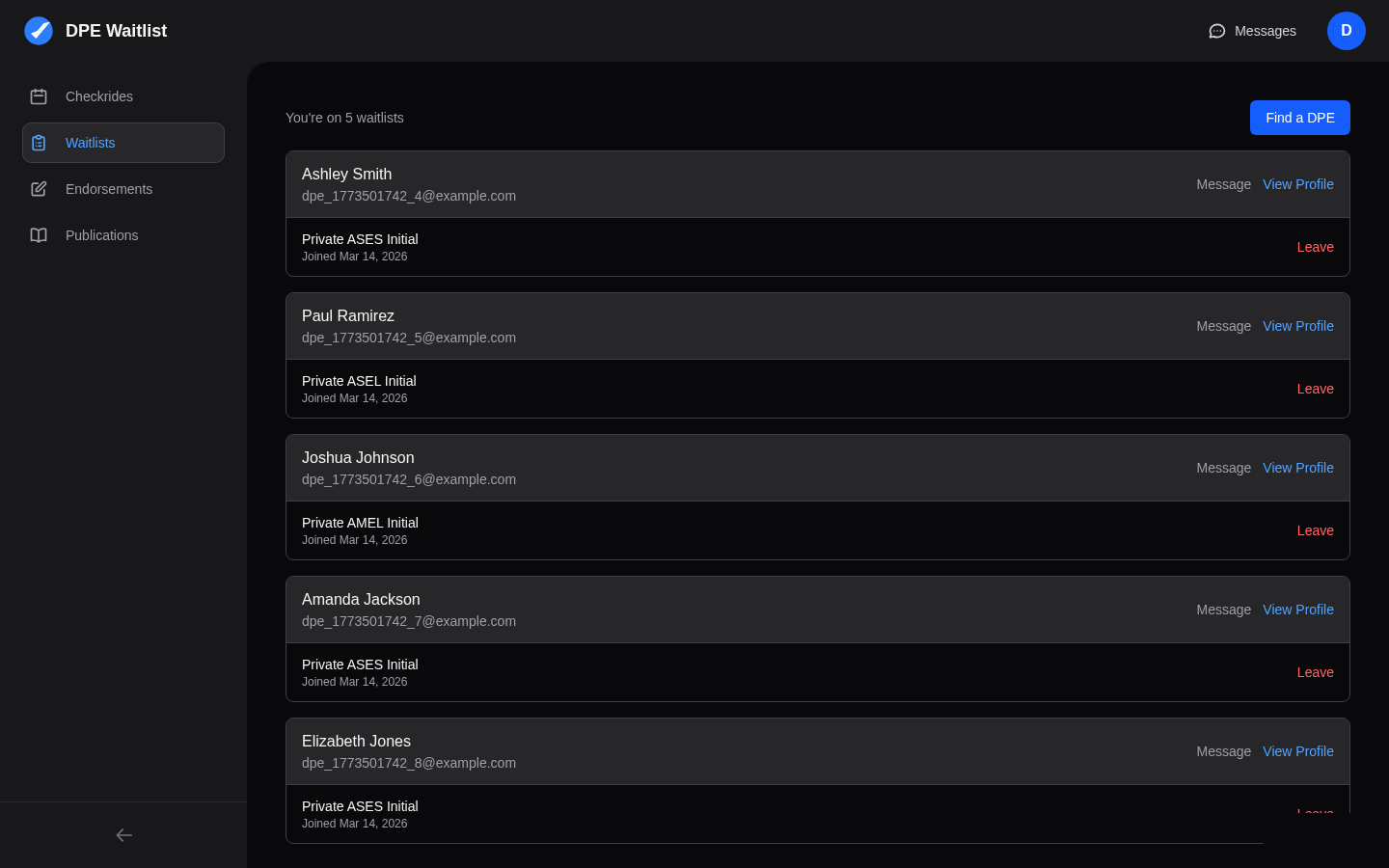
Once you confirm, your waitlist entry is created and you can see it on your Waitlists page. A conversation is automatically created between you and the DPE in the messaging system, so you can communicate about your checkride preparation. Your DPE is notified that you have joined their waitlist.
The platform also automatically creates a Checkride Prep for the checkride type you selected (if you don't already have one or a confirmed checkride for that type). The prep is a pre-checkride checklist you can start working on right away — it lives on your Checkrides page. A small pill on each waitlist entry shows your live prep progress and jumps you straight to that prep when clicked.
What the DPE Sees
When you join a waitlist, the DPE sees your name, checkride type, and selected locations in their waitlist management view. They can view your profile, check your pre-checkride checklist progress, and prioritize your position on the waitlist.
Joining via Email Invitation
If a DPE invites you directly by email, you will receive a link that takes you to the platform. If you already have an account, the waitlist entry is created automatically when you follow the link. If you don't have an account yet, you'll be guided through registration first, and then the waitlist entry will be connected to your new account. Make sure to use the same email address the DPE used to invite you.