Accessing the Messaging System
Click Messages in the sidebar or the mail icon in the top bar to open your conversations. A red badge on the icon shows the number of unread conversations.
How Conversations Are Organized
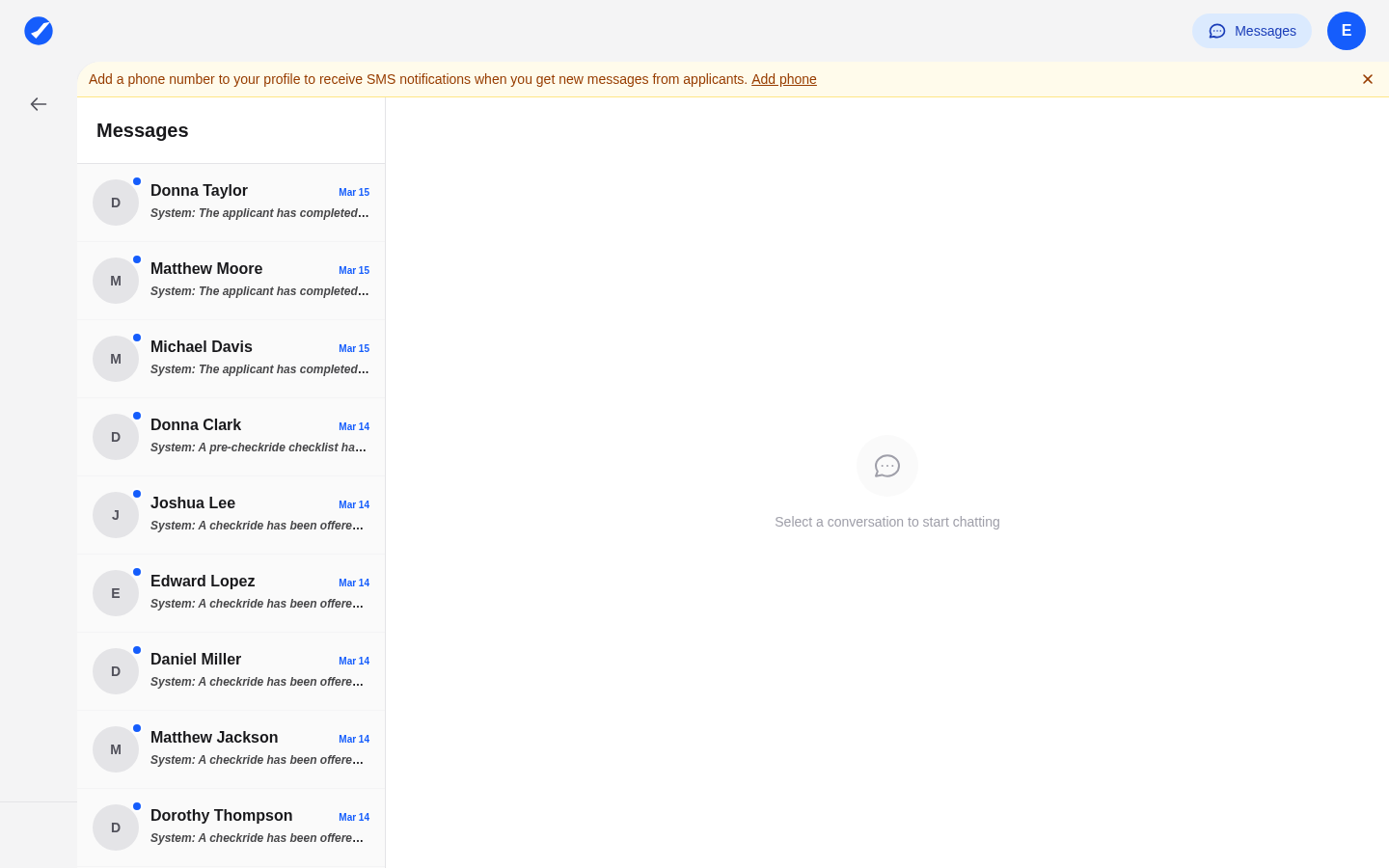
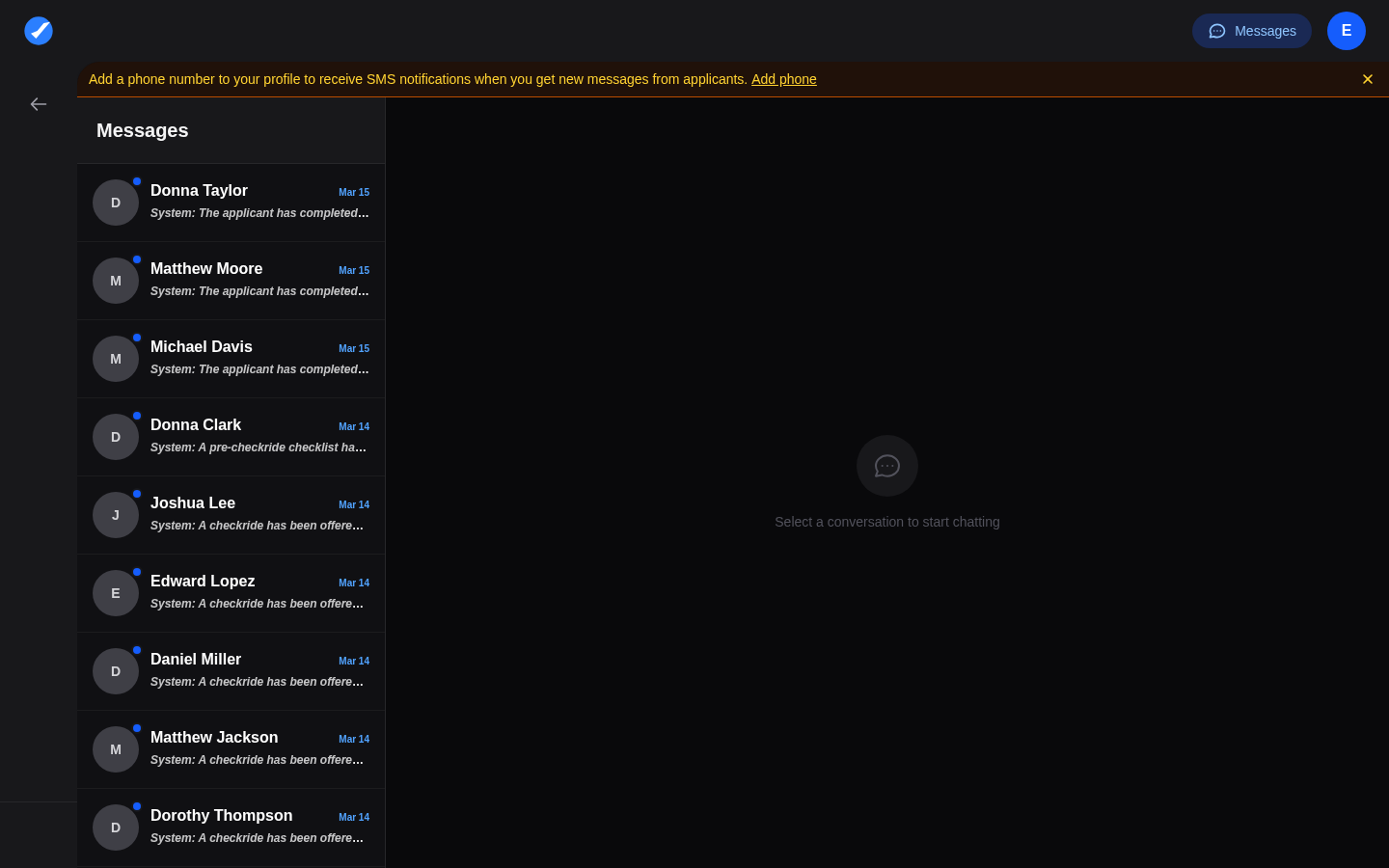
Each applicant has exactly one conversation with you, created automatically when they join your waitlist. The conversation list is sorted by most recent activity and shows the applicant name, last message preview, timestamp, and an unread indicator (bold) for conversations with new messages.
Click a conversation to open it. Messages appear chronologically (oldest at top), and opening the thread marks all messages as read. All messages — manual messages from you or the applicant, plus system-generated messages — appear in the same unified thread.
Sending Messages
Type your message at the bottom of an open conversation and press Enter or click send. The applicant is notified via email (and SMS if they have opted in). You do not need to manually create conversations — just find the applicant and start typing.
Unread Indicators
Unread messages are surfaced in three places: a red badge on the top bar mail icon, an unread count next to Messages in the sidebar, and bold styling on conversation entries with unread messages.
Automated System Messages
The platform sends messages to applicants on your behalf at key moments. These appear in the conversation thread but are visually labeled as system messages. Automated messages include:
- Waitlist welcome — Sent when an applicant joins your waitlist.
- Checkride offer — Sent when the scheduler creates an offer, with date, time, location, and accept/decline instructions.
- Checkride confirmation — Sent when the applicant accepts an offer.
- Checkride cancellation — Sent when a checkride is cancelled by either party.
- Checklist and document reminders — Sent as the checkride date approaches if items are incomplete.
You can supplement automated messages with personal follow-ups — for example, parking instructions or preparation tips after a checkride offer is sent.
Email Notification Settings
Email notifications are enabled by default. You and your applicants receive emails for new messages, checkride offers, confirmations, cancellations, and checklist/document reminders. All emails come from noreply@dpewaitlist.com. Adjust which events trigger email notifications in Settings.
If you or an applicant are not receiving emails, check spam/junk folders first and add noreply@dpewaitlist.com to the safe senders list.
SMS Notifications
SMS is opt-in only. Applicants enable it by adding a phone number in their account settings. SMS covers the most time-sensitive events: checkride offers, confirmations, and cancellations. You cannot force SMS on applicants — those without a phone number on file receive email notifications only.