Accessing Your Conversations
Click Messages in the sidebar to view all your conversations. Each conversation is with a specific DPE and is created automatically when you join their waitlist. You can also access messages by clicking the messages icon in the top bar — a red badge shows the number of unread conversations.
Sending and Reading Messages
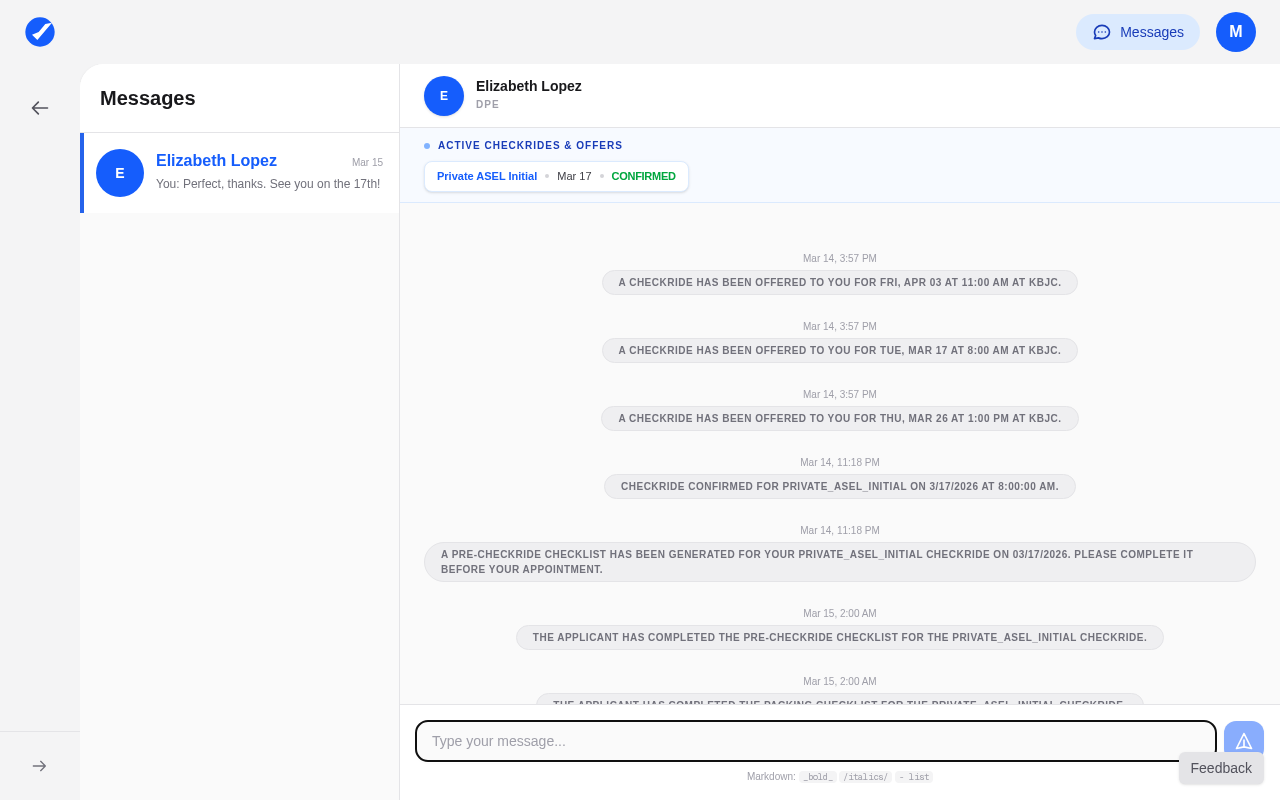
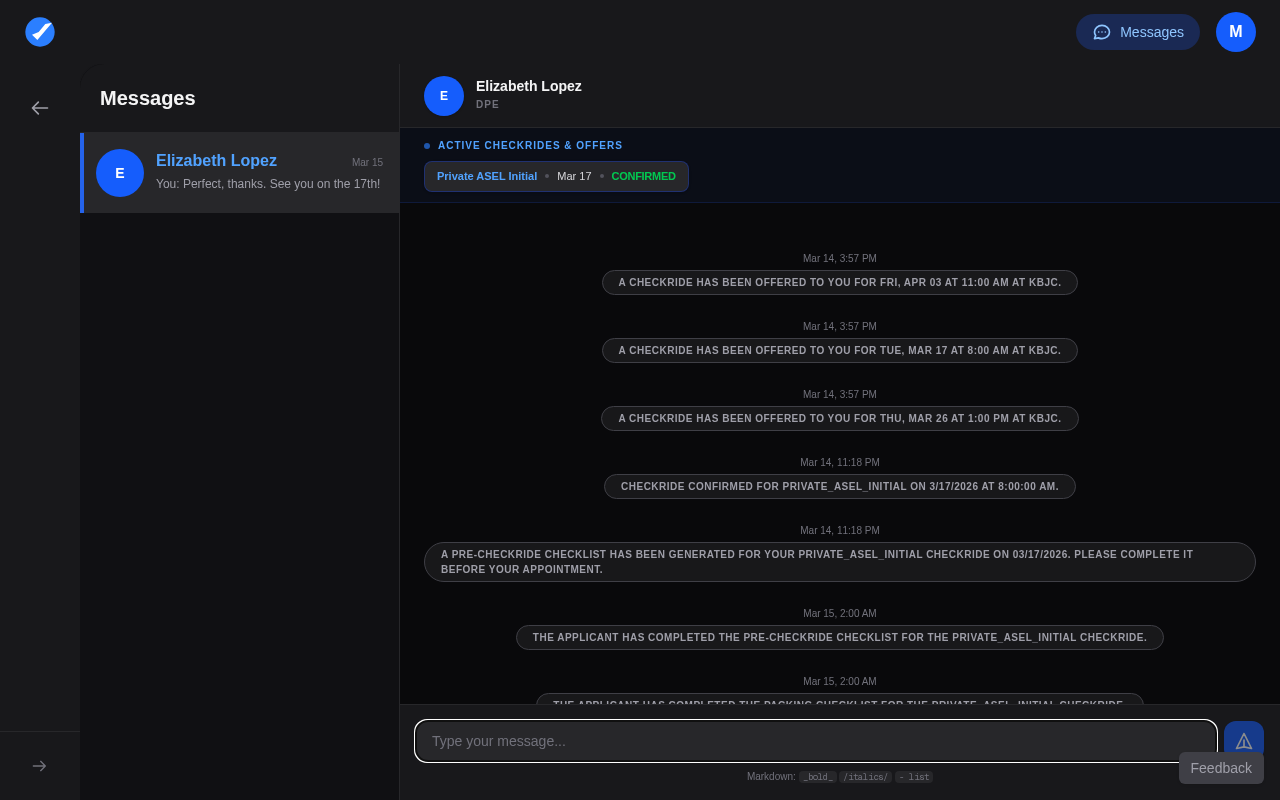
Open the conversation with the DPE you want to contact, type your message in the text input at the bottom, and send it. Messaging is real-time, and will send an SMS reminder to the DPE if they are not already actively reviewing messages. Use the platform's messaging instead of external email or phone so all communication is kept in one place.
System Messages
Your conversations also include automated system messages generated by the platform when important events occur. These are visually distinct from DPE-authored messages and include:
- Checkride offer — A new slot is being offered to you. Review and accept or decline promptly.
- Checkride confirmation — You accepted an offer and the checkride is now confirmed.
- Checkride cancellation — A confirmed checkride has been cancelled.
- Checklist/document reminders — You have incomplete items or documents pending as your checkride date approaches.
Email Notifications
By default, you receive email notifications for checkride offers, confirmations, cancellations, new DPE messages, and checklist reminders. Emails are sent from noreply@dpewaitlist.com. If you are not receiving them, check your spam folder and add the sender address to your allowlist.
SMS Notifications
SMS notifications are opt-in only. To enable them, add your phone number in your Profile. Once added, you receive text messages for the most time-sensitive events, particularly checkride offers that require a quick response.
Managing Notification Preferences
You can manage your preferences in Profile. In-app notifications are always active and cannot be disabled. Email and SMS are supplementary channels — even if you do not use them, you will always see notifications when you log into the platform. You can manage your SMS opt-in by adding or removing your phone number in your Profile.